In today’s lesson, we will show you how to easily transfer files between Android and your computer. Best of all, we’ll show you how to transfer the files via WiFi without the hassle of having to look for a USB cable or removing the SD card from your Droid. You can follow along on the lesson via the Video tutorial or scroll down to the bottom for the Step-by-Step instructions.
There’s a lot of different ways to get files to/from your Android device to your computer. But I’ve been searching for the easiest method possible, so that I could teach users of all levels how to do it in a matter of minutes. Luckily, I was able to find a great app that makes transferring files between Android and your computer extremely simple. The app is WebSharingLite [Click Here to Download] and it allows you to connect your Android device and computer together via the WiFi network in your home and/or office. There is no set up needed, just run the WebSharingLite app and it tells you exactly what to enter into any web browser’s URL bar to get there. You’ll then be able to upload/download whatever files you need. File sharing on Android has never been simpler than this! Take a look at the video tutorial below and let us know if you have any questions!
Video Tutorial Step-by-Step Instructions:
Go to the Android Market
Search for “WebSharingLite” app
Install the “WebSharingLite” app by NextApp, Inc.
Launch the App and click on the Start button at the bottom left
WebSharing will then be activated and you can go to your PC and type in the URL displayed on the screen into your web browser. If prompted, enter the password listed on the screen.
That’s it! Start transferring the files you need!
WebSharingLite not working properly for your device? Try this other great app that is very similar: Wifi File Explorer [Click Here to Download]
Have you been using your new Android smartphone as a replacement for your Digital Camera? If so, I’m sure you’ve taken lots of great pictures! Taking pics on your Droid is a lot more convenient than carrying around another camera. But what if you lost your smartphone? Wouldn’t you like to store the pictures on your computer as a backup? If so, just follow the simple steps in this lesson and I’ll show you how to backup your photos and transfer them to your PC.
Copying pics and videos from the micro-SD Card in your Android device to a computer, allows you to back up and use them on your PC for editing, sharing or viewing. The process of copying photos and videos from your phone to a computer is fairly simple, just follow our step-by-step instructions below to get started!
Instructions:
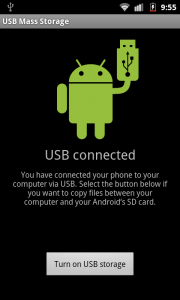
1. Connect your smartphone using the USB sync cable. An USB icon will appear in the notification area of your phone.
2. On the smartphone, drag the notifications bar down and then tap it. Next tap USB connected, and then Mount.
3. On the computer, click the START button and then select Computer or My Computer. The micro-SD card in your phone will be recognized and listed as a Removable Disk.
4. Double-click this removable disk to open it. Double-click the folder DCIM, and then the folder Camera.
5. From this folder, you can copy all pictures and videos taken with the Digital Camera of your Android smartphone.
6. To disconnect your Android, just go to the notifications area on your phone and tap on the USB sign to disconnect.
7. That’s it! Enjoy the peace of mind of knowing that you have a backup of all your pics & videos stored on your PC. In addition, you now have an alternative way to view, share, and edit all of the pics that you’ve taken on your Droid!
Have you ever had to lend your Android phone to someone and then hoped that they didn’t look through your image gallery? Maybe they will find some private pictures that you don’t want them to see! Or how about those pictures of you flexing or posing in front of the mirror? That would be kind of embarrassing! There are so many reasons why someone might want to make their photos on their Android device private. Below I will show you the easiest way to hide photos & videos on your Android device:
Instructions:
1. Go the Android Market (AKA Play Store)
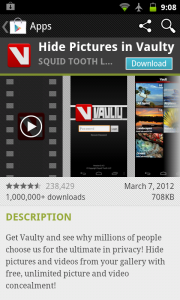
2. Search for the app “Hide Pictures in Vaulty” Or Click Here
3. Click install on this free app
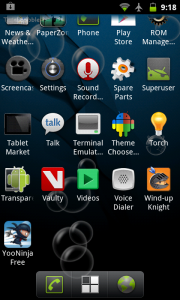
4. Launch the Vaulty app
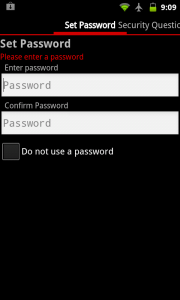
5. Set a password for the app
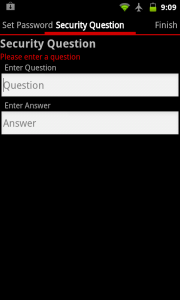
6. Enter a security question (in case you forget password!)
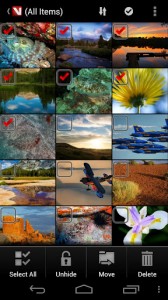
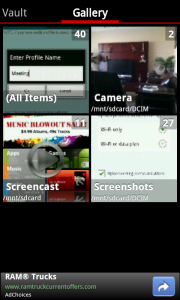
7. Tap the Gallery tab & open a folder
8. Click on a picture that you want to hide
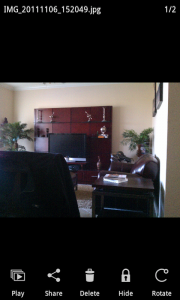
9. Click the hide button
10. Your picture will now be hidden and availabe in the “Vault”
11. That’s it! Now just launch the “Vaulty” app the next time you want to see the hidden photos.


 3:06 AM


 WebSharingLite not working properly for your device? Try this other great app that is very similar: Wifi File Explorer [Click Here to Download]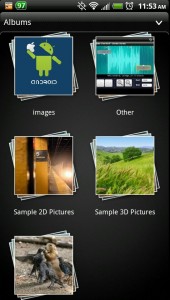



 Posts
Posts


